Managing Projects
Projects are the foundation of work in Campfire. This article covers how to create, access, and manage projects and organize them in folders.
Projects are where collaboration happens in Campfire. Each project contains one or more scenes, and each scene can contain one or more models. Projects and project folders are managed from the project list, which is the first screen you see when opening Campfire.
Availability and requirements
- All Campfire users have access to projects that are shared with them
- For customers with an Enterprise plan, only users with a Core seat can create, update, share, or delete projects
Admins can enable a free, one-time Enterprise trial for any Guest user, giving them access to all Campfire features for 14 days — including the ability to create projects.
How it works
Projects are accessed from the project list. From here, you can create new projects, open projects that have been shared with you, and organize projects into folders.
The project list
When you log into the Campfire app on any device, the project list is the first screen you see.
Projects are organized into three tabs:
Drafts— Projects you’ve created that aren’t shared with anyoneShared— Projects that have been shared with you, and projects you’ve shared with othersLearn— Sample projects provided by Campfire
The project list includes search and sorting tools to help you find projects quickly. Projects can be searched by name and sorted by create date, modified date, name, or type (project or folder).
Creating and managing projects
From the project list, you can create new projects and manage existing ones.
For customers with an Enterprise plan, only Core users can create new projects. Guest users can access projects that are shared with them, but cannot create or edit projects of their own.
Sharing permissions are set and managed at the project level, determining who can view, edit, or collaborate within a project. See the Sharing article for more details on permissions.
Create a new project
To add models to Campfire, start a new project. By default, new projects are created in the Drafts tab and remain there unless shared with others.

Duplicate a project
Create a copy of an existing project to reuse models and scenes without affecting the original.

Rename a project
You can update the project name from the project list, or from within the project. Requires Owner permissions.

Delete a project
Permanently remove a project you no longer need. Requires Owner permissions.

Export and import projects
Requires an Enterprise plan. See Exporting Projects for more details.
With a Starter plan, you can create up to 5 projects, with a maximum of 5 scenes per project. To upgrade to an Enterprise plan, contact sales@campfire3d.com.
Organizing projects with folders
Folders are used to group projects together, helping you keep projects organized.
Folders and sharing
Folders are created from the project list and appear in the tab where they’re created:
- Folders created from the
Draftstab appear in Drafts - Folders created from the
Sharedtab appear in Shared
A folder’s visibility is based on the projects it contains. If a folder contains only draft projects, it will appear in Drafts. If it contains shared projects, it will appear in Shared. When a folder contains a mix of draft and shared projects, it appears in both tabs.
Within a folder with shared projects, users can only see and open the projects they have access to. Project access and permissions continue to be managed at the project level.

Managing folders
Creating and renaming folders works largely the same way as creating and renaming projects.
When you create a folder, you are the owner of that folder. Folders can only be deleted by their owner, and only if the folder does not contain any shared projects owned by others.
Projects can be moved into folders individually or by multi-selecting them (on PC, Mac, and iPad).
There are two ways to move projects:
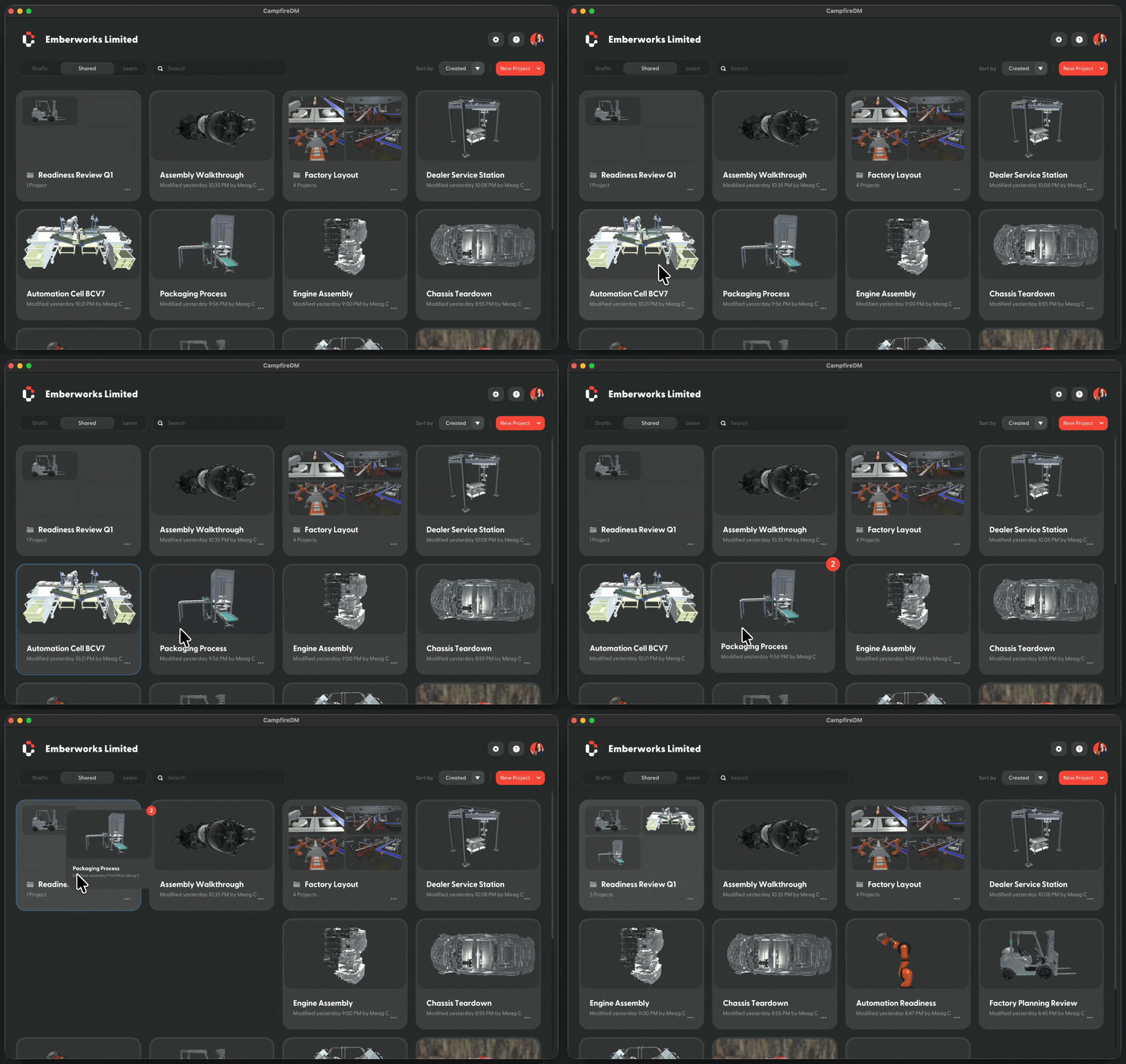
Drag and drop projects directly into folders

From the project context menu, use “Move to” and select a new or existing folder
Related pages Sharing Compose Scenes